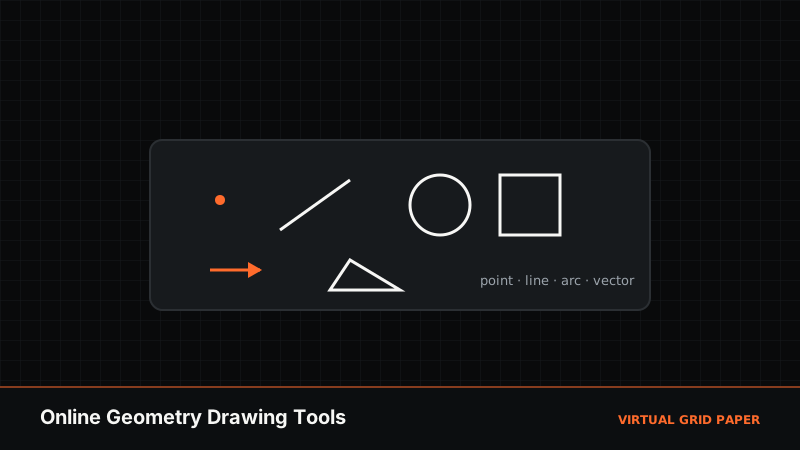
Constructing geometry by hand means juggling a compass, a straightedge, and a protractor — and hoping your pencil lands where you intended. Online geometry drawing tools replace that setup with a grid that snaps points to exact positions and tells you the length and angle of every line as you draw.
The Virtual Grid Paper drawing canvas offers a full set of geometry tools in the browser. This article tours those tools, shows how to combine them into accurate constructions, and explains how live measurements turn the grid into a precise instrument.
Key Takeaways
- A complete geometry toolset — points, segments, rays, arcs, circles, polygons, and vectors.
- Snap-to-grid places every vertex on an exact coordinate.
- Live readouts report length and angle as you construct.
- Everything runs in the browser, free, with local auto-save.
Table of Contents
- The Geometry Toolset
- Points, Lines, Segments, and Rays
- Circles and Arcs
- Polygons and Vectors
- Measuring Angles and Lengths Live
- A Sample Construction
- Frequently Asked Questions
1. The Geometry Toolset
The canvas provides 13 tools. For geometry work, the ones you will reach for most are:
| Tool | Geometry use |
|---|---|
| Point | Mark vertices, centers, and coordinates. |
| Line | Represent an unbounded line through two points. |
| Segment | Connect two vertices with a measured edge. |
| Ray | Show a half-line, useful for angles. |
| Circle | Draw circles from a center and radius. |
| Arc | Build partial curves and sectors. |
| Polygon | Construct triangles, quadrilaterals, and n-gons. |
| Vector | Draw directed arrows with magnitude and angle. |
Because each tool respects snap-to-grid, your constructions are precise by default. If you are new to snapping, read how snap-to-grid works first.
2. Points, Lines, Segments, and Rays
Start every construction with points — they define the coordinates everything else attaches to. From two points you can draw a line (unbounded), a segment (bounded edge), or a ray (half-line from a start point).
Rays are especially useful for angles: place a vertex, draw two rays from it, and the live angle readout tells you the exact measure between them. This makes it easy to construct a 30°, 45°, or 90° angle without a physical protractor.
3. Circles and Arcs
The circle tool draws from a center point outward; drag until the radius readout hits the value you want. Circles are the digital equivalent of a compass and are the foundation of many constructions — perpendicular bisectors, equilateral triangles, and inscribed figures all begin with them. See our dedicated guide to drawing a circle on digital graph paper for step-by-step technique.
The arc tool draws partial curves, which you can use for sectors, rounded corners, and marking angle spans within a figure.
4. Polygons and Vectors
The polygon tool builds shapes vertex by vertex; click each corner and the tool connects them, snapping every vertex to the grid. This is the fastest way to construct triangles and quadrilaterals with exact side lengths — covered in depth in drawing rectangles and polygons on a grid.
The vector tool draws directed arrows and reports both magnitude and direction. For physics diagrams, force problems, and coordinate translations, this is the tool to use — see using the vector tool for geometry.
Construct your first shape
Open the geometry canvas →5. Measuring Angles and Lengths Live
The feature that makes these tools precise rather than merely convenient is the live readout. As you drag a segment, the canvas displays its length; as you draw a ray or vector, it shows the angle. You can therefore construct to a target: pull a segment until it reads 6 units, or rotate a ray until the angle reads exactly 60°.
Combined with numbered axes and snap-to-grid, this means you rarely need external measuring tools. The grid is your ruler and protractor.
6. A Sample Construction
Try building an equilateral triangle:
- Draw a segment 6 units long along a grid line — the length readout confirms it.
- Draw a circle centered on each endpoint, both with radius 6.
- Place a point where the two circles intersect.
- Connect that point to both endpoints with segments.
- Check the angle readouts — each interior angle reads 60°.
You have reproduced a classic compass-and-straightedge construction entirely on the grid.
For a second quick exercise, construct a perpendicular bisector: draw a segment, then draw two circles of equal radius centered on its endpoints (make the radius larger than half the segment so they overlap). Place points where the circles cross above and below the line, and connect them. The line you get cuts the original segment exactly in half at 90° — the angle readout confirms the right angle, and the length readouts confirm the two halves are equal.
Common Mistakes to Avoid
- Skipping the points. Defining vertices first keeps constructions organized and editable.
- Ignoring the readouts. They exist so you can build to exact values — use them.
- Leaving snapping off for structured constructions, which reintroduces drift.
When to Use Online Geometry Tools
Use them for coordinate geometry, classroom demonstrations, homework diagrams, and any figure that must be accurate. For freehand artistic sketching, disable snapping or use the freehand tool instead. If you only need a blank grid to work on with pencil, print one from the graph paper generator.
Related Tools and Guides
- How to draw a circle on digital graph paper
- How to draw rectangles and polygons on a grid
- Coordinate geometry on graph paper
- Open the drawing canvas
Conclusion
Online geometry drawing tools bring the compass, straightedge, and protractor into one browser window — with snap-to-grid precision and live measurements that let you construct to exact lengths and angles. Whether you are plotting coordinates, building polygons, or teaching a construction, the grid handles the accuracy so you can focus on the geometry.
Frequently Asked Questions
Which geometry tools are available on the canvas?
The canvas includes points, lines, segments, rays, arcs, circles, rectangles, polygons, and vectors, plus select, text, and eraser tools — 13 in total — all of which snap to the grid for precise construction.
Can I measure angles and lengths while I construct?
Yes. As you draw segments and vectors, the canvas shows live length and angle readouts, so you can build a shape to an exact size or set a line to a specific angle without a separate protractor.
Is this a replacement for compass-and-straightedge construction?
It complements it. Snap-to-grid and live measurements handle precise placement digitally, which is ideal for coordinate geometry and diagrams, while classic compass-and-straightedge work teaches the underlying constructions.
Do I need special software or a login?
No. The geometry tools run in any modern browser with no installation and no account required, and your work is saved locally so you can return to it.