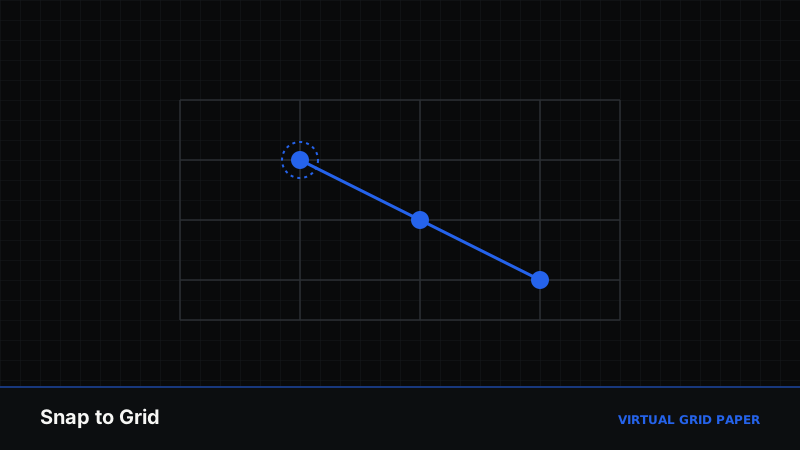
Snap-to-grid is the small feature that makes digital graph paper feel effortless. Instead of nudging a line pixel by pixel to make it straight, you let the canvas pull each point to the nearest exact intersection. The result is clean geometry, aligned shapes, and coordinates that land exactly where they should — every time.
This guide explains what snap-to-grid does, why it matters for precision, when you might want to switch it off, and how to put it to work on the Virtual Grid Paper drawing canvas.
Key Takeaways
- Snapping locks points to exact grid intersections as you draw.
- It removes manual alignment and produces clean, repeatable geometry.
- Keep it on for diagrams and geometry; turn it off for organic freehand strokes.
- Snapping aligns to whatever grid spacing you set — it does not change the spacing.
Table of Contents
- What Snap-to-Grid Means
- Why Snapping Improves Accuracy
- Using Snap-to-Grid Step by Step
- When to Turn Snapping Off
- Best Practices
- Frequently Asked Questions
1. What Snap-to-Grid Means
A grid is a lattice of horizontal and vertical lines that cross at regular intersections. Snap-to-grid means that when you click or drag near one of those intersections, the canvas moves your point precisely onto it. You do not have to hit the exact spot — the tool finishes the alignment for you.
On the Virtual Grid Paper canvas, snapping applies to every relevant tool: the endpoints of a segment, the corners of a rectangle, the center of a circle, and each vertex of a polygon all lock to exact coordinates. Combined with numbered axes, that means a point you intend to place at (4, 2) truly sits at (4, 2), not at (3.97, 2.05).
2. Why Snapping Improves Accuracy
Freehand placement drifts. Even careful clicking leaves lines a fraction off, and those small errors compound as a drawing grows — parallel lines stop looking parallel, and shapes no longer share edges cleanly. Snapping eliminates that drift at the source.
The practical benefits:
- Straight lines and true right angles without a ruler or protractor.
- Shapes that share vertices exactly, so edges meet with no gaps or overlaps.
- Repeatable coordinates, which matters for math, coordinate geometry, and technical diagrams.
- Faster work, because you stop fussing over pixel-level positioning.
This precision is the same reason engineers and students have long preferred grid paper for technical drawing — snapping simply automates the counting.
3. Using Snap-to-Grid Step by Step
- Open the drawing canvas and confirm snap-to-grid is enabled.
- Set your grid spacing to suit the drawing — see choosing grid density if you are unsure.
- Pick the Segment tool and click two intersections. Notice how the endpoints jump onto exact points.
- Add a Rectangle; drag corner to corner and watch the sides align to the grid.
- Use Select to move a shape — it re-snaps when you release, so alignment is preserved.
See snapping in action
Open the drawing canvas →4. When to Turn Snapping Off
Snapping is ideal for structured work, but it can fight you when you want natural, flowing lines. Turn it off when you are:
- Sketching freehand — organic curves should not jump to intersections.
- Tracing a shape that does not align to the grid.
- Making fine adjustments that fall between grid points on purpose.
A good habit is to draw the structured parts (axes, frames, straight segments) with snapping on, then disable it for the freehand details. You can toggle it as often as you like within a single drawing.
5. Best Practices
- Match spacing to the task first, then snap. Snapping is only as precise as the grid you set.
- Use snapping for anything you will measure. Live length and angle readouts are most useful when endpoints sit on exact points.
- Toggle deliberately. If a line will not align, the usual cause is snapping being off — and if a freehand stroke feels jerky, snapping is probably on.
- Export when done. Snapped drawings stay crisp in PNG, SVG, PDF, or JSON exports.
When to Use Snap-to-Grid
Use it whenever alignment and precision matter more than spontaneity: geometry constructions, coordinate plotting, wireframes, floor-plan sketches, and any diagram whose parts must line up. Switch it off for expressive, freehand drawing where the human wobble is the point.
Related Tools and Guides
- How to use the drawing canvas — the full canvas walkthrough.
- Online geometry drawing tools — precise construction tools.
- How to draw rectangles and polygons on a grid — snapping applied to shapes.
- Start drawing now — open the canvas.
Conclusion
Snap-to-grid is what separates a tidy digital diagram from a wobbly one. By locking every point to an exact intersection, it gives you ruler-straight lines, true right angles, and coordinates you can trust — with none of the manual effort. Keep it on for structured work, toggle it off for freehand, and let the grid handle the alignment.
Frequently Asked Questions
What does snap-to-grid actually do?
Snap-to-grid pulls your cursor to the nearest grid intersection as you draw, so every point, line endpoint, and shape vertex lands on an exact coordinate instead of a slightly-off position.
Should I always leave snapping on?
Leave it on for anything that needs alignment — geometry, diagrams, technical figures, and coordinate plotting. Turn it off only when you want free, organic strokes such as freehand sketching.
Does snapping change the size of the grid?
No. Snapping only affects where your points land; it does not change grid spacing. You set the cell size separately, and snapping aligns to whatever spacing you have chosen.
Is snap-to-grid available for free without signing up?
Yes. Snap-to-grid is built into the Virtual Grid Paper drawing canvas, which runs in your browser at no cost and without an account.