Vector and raster are the two families every digital image belongs to, and choosing between them affects quality, file size, and how a design behaves when it scales. This guide explains the underlying difference, compares SVG, PNG, JPEG, PDF, and GIF against real use cases, and then covers the practical details: transparency, DPI, web performance, and picking export settings for each destination.
One Stores Geometry, the Other Stores Pixels
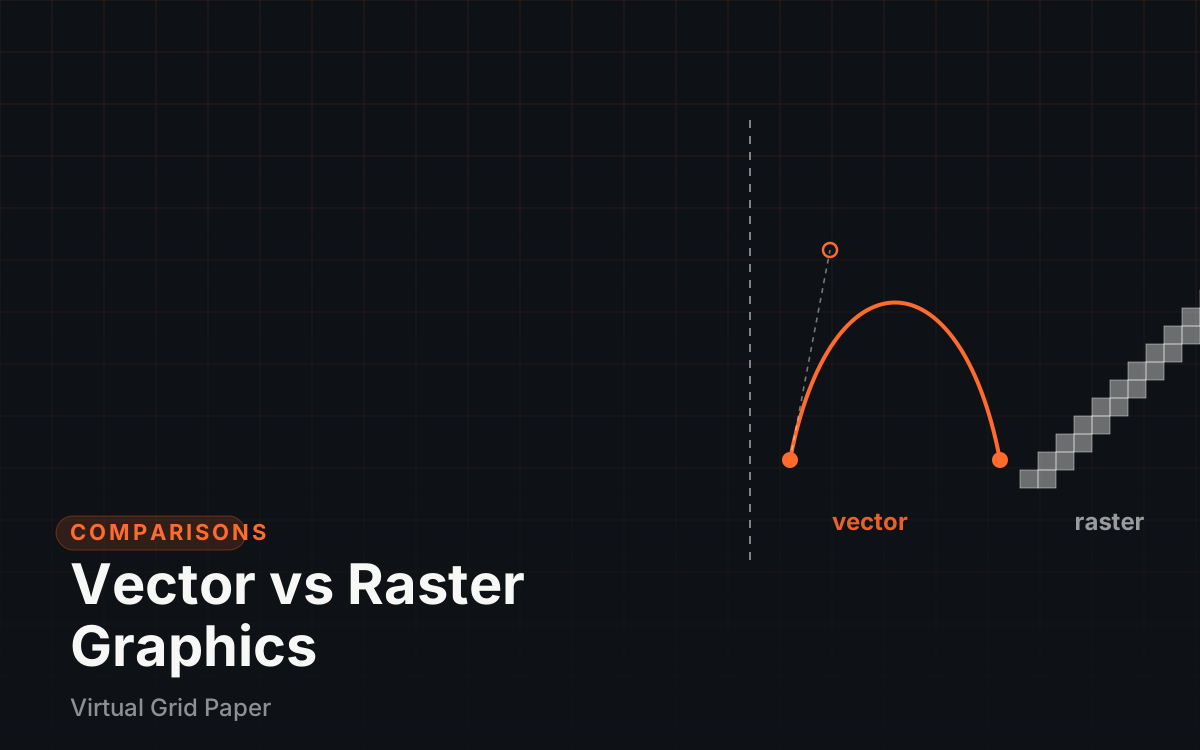
A vector graphic is a set of instructions: points, lines, curves, and fills defined mathematically. Because the drawing exists as geometry, it renders crisply at any size — scale the same logo to a business card or a billboard and the edges stay sharp. A raster graphic is a fixed grid of colored pixels; enlarging it stretches those pixels, producing blur and visible blockiness.
The mental model that keeps all of this straight is a brand logo versus a photograph. The logo is simple line work and flat color, ideal for description by geometry, and it must appear at many sizes — favicon, signage, print. The photograph is a dense field of continuous tones that only a pixel grid captures faithfully at a fixed resolution. That is why logos belong to vectors and photos belong to rasters, and why most real projects quietly use both.
The two families are not interchangeable, and the direction of conversion reveals why. Any vector can be flattened into raster at whatever resolution the destination needs, which loses nothing important. Going the other way — turning pixels into smooth geometry — means redrawing or auto-tracing, a re-creation that suits simple logos and never fully recovers detail-rich images. That asymmetry alone is the reason original vector master files are worth keeping.
The Five Formats That Cover Almost Everything
SVG — the vector web format
SVG is an XML-based vector format and the standard for web icons and flat illustration. Files stay small for flat art, scale losslessly on any display, and remain accessible to screen readers and search engines because the source is plain text.
PDF — the container
PDF can embed both vector and raster content, so it is the default for print-ready layouts and documents — type, vector elements, and images travel together in one predictable file.
PNG — lossless raster with transparency
PNG compresses without discarding data and supports alpha transparency. It is the format for flat graphics, screenshots, text overlays, and any composite that needs a transparent background.
JPEG — lossy raster for photographs
JPEG applies lossy compression designed for photographic content, producing far smaller files at the cost of some image data, and it has no transparency support for production work.
GIF — the limited-palette format
GIF stores a limited palette of up to 256 colors and supports simple animation, which suits lightweight loops but flattens photographic detail.
Two others complete the map: TIFF serves print production of high-quality raster images, and WebP is a modern web raster aimed at smaller files than older formats.
Match the Format to the Job
| Use case | Best format | Why |
|---|---|---|
| Logo | SVG | Geometry stays crisp at every size |
| Photograph | JPEG or WebP | Lossy compression delivers much smaller files |
| Overlay needing transparency | PNG | Lossless detail plus an alpha channel |
| Print layout | Embeds vector and raster together | |
| Icon set | SVG | One small file serves every resolution |
| Social graphic | PNG or JPEG | PNG for flat and text work, JPEG when photo-heavy |
Most finished pieces combine both families without announcing it. A brochure is a PDF wrapper holding vector type and logo alongside raster photographs; a web page is markup containing SVG icons next to JPEG images. Thinking in layers rather than in one file makes the choice structural: put raster where continuous tone exists, and vector anywhere an edge must survive any size.
Key Takeaway The format is determined by what is being made and where it goes, not by preference.
File Size and Web Performance
Raster file size scales with pixel dimensions, so a version twice as large in each direction carries roughly four times the data. The practical response is responsive images: ship raster assets sized to where they actually appear, so large screens get large sources and small screens do not over-download bytes the viewer will never see. Vector formats behave differently — an SVG’s weight depends on path complexity, not on display size, which is why icon systems are built on it. One asset serves every resolution, and zoom or high-density rendering costs nothing extra. That asymmetry is the single biggest performance argument for keeping logos, icons, and flat illustration as SVG on the web.
Display density adds another layer to the same reasoning. The same raster file that looks fine on a standard screen turns soft the moment a device doubles its pixel count, because the pixels are simply spread over more of them. Vectors sidestep the problem entirely, which is why high-density displays pushed web iconography toward geometry: pixels could no longer be counted on to appear one-to-one.
Transparency, DPI, and Screen Versus Print
Two physical realities govern output quality. The first is transparency: PNG carries a full alpha channel, JPEG does not, so a logo placed over a colored background must be PNG or SVG. The second is spatial resolution: screens typically render raster images at 72 PPI, while offset print expects 300 DPI at the final physical size. For print, a raster image therefore needs enough pixels to cover the print area at 300 DPI, and layouts add bleed — image extending past the trim line — so cutting can never leave white slivers. Text, logos, and line art stay vector in the final PDF precisely so their edges remain crisp at the press’s output resolution.
Choose Export Settings for Each Destination
Export decisions become simple once the destination is named. Drawings created in this site’s free browser drawing app export directly as PNG, SVG, or PDF — the three formats that cover screen raster, scalable vector, and print. The detailed settings walkthrough lives in exporting online graph paper drawings. For physical print sheets rather than screen images, the printable graph paper tool produces PDFs sized correctly for paper. Where the work is image-based — photographs arranged on grids — the photo grid maker outputs raster compositions suited to PNG or JPEG delivery.
Common Mistake Exporting a logo as a low-resolution JPEG — the edges blur, the transparency is gone, and reprinting the design at size becomes impossible without starting over.
Where Each Format Wins
The patterns fall out of the physics, and they are consistent:
- Photographs and photo-heavy layouts: raster (JPEG or WebP). Editing happens pixel by pixel, so pixels are the native medium.
- Logos, icons, and line art: vector (SVG). These shapes must survive every scaling from a browser tab icon to building signage.
- Print documents: vector for text, logos, and line art, with 300 DPI raster for the photographs — the export step in how to design graphics walks through this decision in a full workflow.
- Posters and large-format work: vector elements combined with deliberately high-resolution raster images; A4 graphing paper sheets are useful for arranging placement at paper size before scaling anything up.
- Tooling: which software produces each format — and at what cost — is compared in free vs paid graphic design software.
One boundary case deserves attention: hand-drawn work always arrives as raster from a scanner, so the base it was drawn on matters. The difference between graph paper and grid paper affects how easily a scanned drawing can be cleaned up afterward. And for deciding which graphic types pair with which formats, the catalog of graphics in design: types, elements, and examples maps each elements family to its natural medium.
The Format Follows the Purpose
Nothing here requires memorizing every container on the market; five formats and one distinction cover nearly everything. Ask two questions — is the content geometric or photographic, and is it going to a screen or onto paper — and the format picks itself. Build the habit at export time and quality problems largely stop before they start.