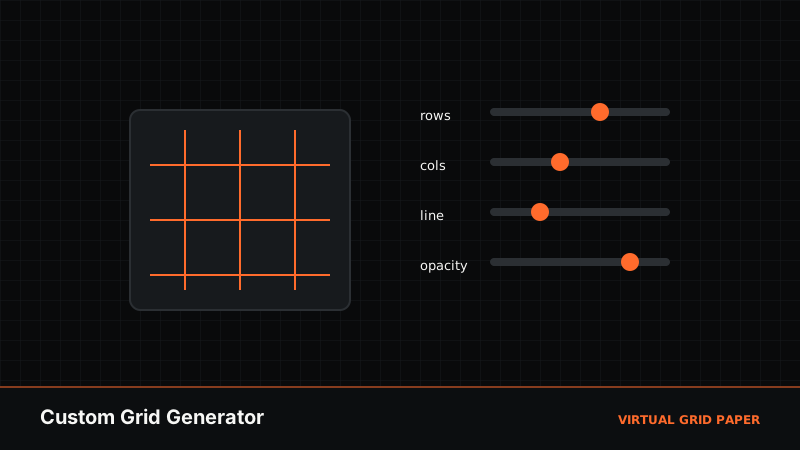
Sometimes you do not need paper-sized graph paper — you need a grid image at a specific proportion, with a certain number of cells, in a colour that suits your project. The Virtual Grid Paper custom grid generator does exactly that: define a grid by rows and columns, style it, optionally lay it over your own image, and export a clean PNG or JPG.
This guide covers the whole tool — grid size, line styling, labels, aspect ratios, using an uploaded image, and export — so you can produce precisely the grid you have in mind.
Key Takeaways
- Define a grid by rows and columns on a canvas of your chosen aspect ratio.
- Style line color, width (1–20 px), and opacity, with a solid or transparent background.
- Add numbered or alphanumeric (A1) cell labels.
- Optionally overlay your own image, then export PNG/JPG or copy to clipboard.
Table of Contents
- What the Custom Grid Generator Does
- Setting Grid Size and Aspect Ratio
- Styling Lines, Background, and Labels
- Overlaying Your Own Image
- Exporting the Grid
- Common Mistakes
- Frequently Asked Questions
1. What the Custom Grid Generator Does
The custom grid generator builds a grid image rather than a printable paper sheet. You decide how many rows and columns the grid has, what the lines and background look like, and whether to draw it over an uploaded picture. The result is an image file you can drop into a design, a worksheet, a game board, or a reference for the grid method.
It runs in your browser. Any image you add is processed locally on your device and is not uploaded to a server. When the grid looks right, you export it or copy it directly.
If you want paper-format graph paper for printing instead, the printable graph paper generator and A4 graph paper tool are the better fit; this generator is about producing a grid image at an arbitrary proportion.
2. Setting Grid Size and Aspect Ratio
Two choices define the shape of your grid:
- Rows and columns set how many cells the grid has in each direction. This is independent of the canvas proportion, so you can have a wide grid with few tall cells or a dense fine grid.
- Aspect ratio sets the canvas proportions. Options include 1:1, 4:3, 16:9, 3:2, A4, and a match option that follows an uploaded image’s proportions.
Choosing the aspect ratio first tells the tool what shape the overall grid should be; the rows and columns then divide that shape into cells. For a square game board, pick 1:1; for a widescreen overlay, 16:9; to mirror a photo you will upload, use match.
Worked example — a 5×5 bingo card: choose the 1:1 aspect ratio so every cell is square, set both rows and columns to 5, turn on numbered or A1-style labels so each square has a reference, then export a PNG. The same three decisions (ratio, row/column count, labels) cover most grid images you will ever need; only the styling changes.
3. Styling Lines, Background, and Labels
The generator gives you full control over how the grid reads:
- Line color — choose any colour, with quick presets for common choices.
- Line width — continuously adjustable from 1 to 20 px, so lines can be hairline-fine or bold.
- Opacity — from 0 to 100, for anything from a faint guide to solid lines.
- Background color — a solid colour of your choice, or transparent so the grid can sit over another design.
- Labels — turn cells into a referenced grid with numbers or alphanumeric labels like A1, B2. This makes the grid method and coordinate teaching straightforward, because every square has a name.
Contrast is the main thing to get right: dark lines on a light background, or light lines on a dark one, keep the grid legible.
4. Overlaying Your Own Image
The grid does not have to sit on a blank canvas. You can upload an image (up to 25 MB), and the grid is drawn over it:
- Add your image; the canvas can match its aspect ratio so nothing is stretched.
- Set the rows and columns you need over the picture.
- Adjust line colour and opacity so the grid is visible against the image.
- Add labels if you want a referenced grid for copying by hand.
This overlaps with the dedicated grid overlay tool, which adds photo-specific extras like diagonals, a rule-of-thirds guide, and image-opacity control. Use the grid generator when you want a straightforward labelled grid image; use the overlay tool when you are setting up a reference photo for the grid method specifically.
Generate a custom grid
Open the custom grid generator →5. Exporting the Grid
When the grid is ready, you have three ways to take it with you:
- Export PNG — lossless, and preserves a transparent background if you chose one.
- Export JPG — a smaller file for a solid-background grid.
- Copy to clipboard — paste the grid straight into another app without saving a file first.
For overlays and designs where you need transparency, always use PNG; JPG cannot store a transparent background.
6. Common Mistakes
- Low contrast between lines and background, making the grid hard to see.
- Choosing JPG for a transparent grid — the transparency is lost; use PNG.
- Too many cells for the purpose, which clutters the image.
- Stretching an uploaded image by using a mismatched aspect ratio — use match to keep proportions.
When to Use the Custom Grid Generator
Reach for this tool when you need a grid as an image at a specific proportion — a game or bingo board, a labelled coordinate grid for teaching, a design overlay, or a quick reference grid over your own picture. For printable, paper-sized graph paper use the printable graph paper generator; for a photo reference with composition guides use the grid overlay tool; to combine several photos into a collage use the photo grid maker.
Related Tools and Guides
- How to use a grid overlay on a reference photo
- Free printable grid templates for artists
- Coordinate geometry on graph paper
- How to create printable graph paper online
Conclusion
The custom grid generator gives you a grid image on your terms: any number of rows and columns, any proportion, styled lines, optional labels, and an optional image underneath. Set it up, then export a PNG or JPG or copy it to the clipboard — all in your browser. When you need a grid that is not tied to a paper size, this is the tool that shapes it to fit.
Frequently Asked Questions
What does the custom grid generator create?
It creates a grid image with the number of rows and columns you choose, on a blank canvas or over an uploaded image. You control line color, width, opacity, background, and cell labels, then export a PNG or JPG.
Can I overlay the grid on my own image?
Yes. You can upload an image (up to 25 MB) and the grid is drawn over it, or you can generate a grid on a blank or coloured background without any image.
Can I label the grid cells?
Yes. Cells can be numbered, or labelled alphanumerically like A1, B2, so each square has a clear reference. This is useful for the grid method and for teaching coordinates.
How do I export the finished grid?
Export the grid as a PNG or JPG, or copy it straight to your clipboard. Everything is generated in your browser, so nothing is uploaded to a server.