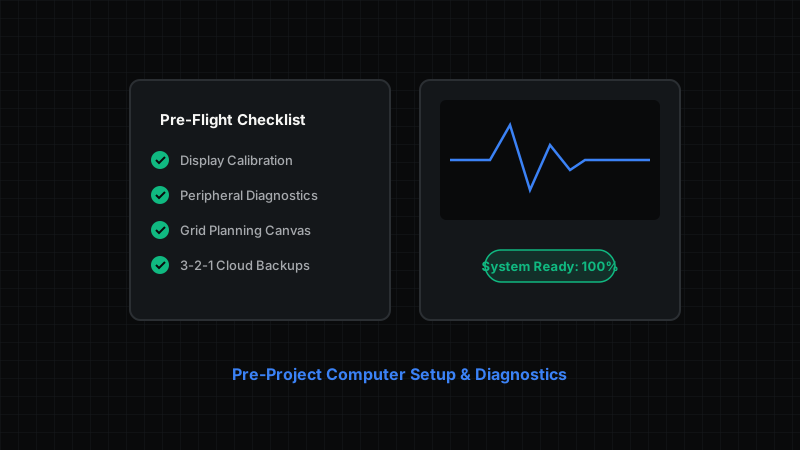
Every creative professional and developer knows the sinking feeling of a mid-project hardware failure. You are forty-eight hours away from a critical client milestone or product launch, adrenaline is high, and suddenly your system falters: an external monitor starts flickering, a modifier key sticks during a code refactor, or a cloud backup sync silently fails, corrupting your local project repository.
In high-stakes industries—from aviation to surgery—professionals never jump straight into high-pressure tasks without running through a pre-flight checklist. The same principle should apply to your digital workstation.
Before you write your first line of code, draft your first design wireframe, or record your initial media assets, dedicate thirty minutes to auditing your computer setup. This systematic pre-project inspection will identify hardware bottlenecks and software conflicts before they have a chance to disrupt your work.
+-----------------------------------------------------------------------+
|                    THE 5-POINT PRE-FLIGHT AUDIT                       |
|                                                                       |
|   [1. Display System] -----> Resolution, Color Profile, Aspect Ratio  |
|   [2. Input Devices] ------> Keystroke Rollover, Latency, Calibration |
|   [3. Scratchpad Canvas] --> Grid Setup, Visual Spec Workspaces       |
|   [4. System Resources] ---> Thermal Headroom, Daemon Pruning         |
|   [5. Storage & Sync] -----> Git Remotes, 3-2-1 Backup Protocol       |
+-----------------------------------------------------------------------+
1. Display Audit: Resolution, Scaling, and Alignment
Visual inconsistencies can derail design and development projects early on. If your monitors are mismatched in scaling or color profiles, UI components that look balanced on your primary screen may look broken on your client’s device.
Subpixel Scaling and Color Space Matching
- Display Scaling: If you use dual monitors with different resolutions (e.g., a 4K main display paired with a 1080p secondary screen), verify that your operating system’s display scaling matches your visual preferences without causing blurry text or rendering artifacts.
- Color Profiles: Check that both monitors are set to standard sRGB or Display P3 color profiles. A monitor stuck in an oversaturated “Vivid” or “Gaming” picture mode will lead to poor color choices in web assets and design systems.
- Aspect Ratio Verification: Before designing user interfaces or responsive landing pages, verify your display’s pixel proportions. Using an aspect ratio calculator helps you determine exact layout breakpoints, video container dimensions, and responsive grid proportions.
Target Container Ratio    Standard Resolution     Calculated Ratio
-------------------------------------------------------------------
Classic Landscape (16:9)  1920 x 1080             1.777:1
Ultra-wide Canvas (21:9)  2560 x 1080 / 3440x1440 2.388:1
Modern Mobile View (9:16) 1080 x 1920             0.5625:1
Tablet Layout (4:3)       2048 x 1536             1.333:1
To double-check component alignment against real-world photo assets or mockups, you can also use a browser-based grid overlay tool to inspect responsive margins directly over your screen layout.
2. Input Hardware: Keys, Cursors, and Switch Diagnostics
Your input devices take thousands of impacts every day. Switches wear down, dust collects under keycaps, and sensor lenses collect micro-fibers. A switch that misbehaves under rapid typing can introduce subtle syntax errors, delete lines of text, or cause accidental clicks during delicate vector drafting.
Problem             Hardware Cause                  Project Consequence
--------------------------------------------------------------------------------------
Key Chattering      Oxidized electrical switch contact Double-registers letters ("llike")
Dropped Modifiers   Worn membrane or broken diode    Shortcut failure (cancels operations)
Sensor Jitter       Dust particle in optical mouse cavity Inaccurate Bezier curve drawing
Cable Intermittent  Internal copper fatigue at stress relief Sudden peripheral disconnect
Performing an Input Health Check
Never assume your keyboard is performing flawlessly simply because it turns on. Before diving into an intensive project sprint, run a comprehensive online keyboard test in your browser.
A quick diagnostic run lets you verify several critical performance metrics:
- Actuation Reliability: Press every letter, digit, and function key across the entire board to ensure none require extra force to register.
- Modifier Key Persistence: Hold down
Shift,Ctrl, andAltfor five seconds to confirm that the electrical signal stays solid without dropouts. - Key Chattering / Debounce: Tap individual keys rapidly in succession to confirm that single taps do not trigger duplicate keystrokes.
- Mouse Sensor Tracking: Sweep your pointing device in large, slow circles across your desk mat to ensure your cursor tracks smoothly without skipping or stuttering.
3. The Thinking Environment: Initializing Your Digital Canvas
When starting a project, jumping directly into your final authoring environment—such as a blank code editor, video timeline, or 3D modeling tool—can actually slow you down. Complex problems benefit from a dedicated planning stage.
Rough Concept Phase               Structured Drafting Phase        Production Execution
[ Interactive Grid Canvas ] ----> [ Architecture Specs / Flow ] -> [ IDE / Vector Tool ]
Set up an auxiliary interactive digital canvas on your second monitor before your kickoff meeting. Having an active virtual grid paper canvas ready allows you to:
- Sketch System Architectures: Map database relationships, user auth flows, and state machines visually.
- Calculate Column Grids: Block out layout proportions and responsive layouts along clean grid divisions.
- Keep an Ephemeral Scratchpad: Jot down temporary API endpoints, hex color codes, and quick formulas without cluttering your formal documentation.
If your planning sessions involve in-person whiteboarding or desk sketching, generate printable graph paper sheets tailored to your team’s preferred scale before your project sprint begins.
4. System Performance and Background Process Hygiene
Over months of general use, operating systems accumulate background clutter: auto-starting updaters, idle chat clients, leftover container daemons, and bloated browser caches. These background tasks consume RAM and trigger thermal throttling when your computer is pushed hard.
System Performance Audit Steps:
[ ] Audit Startup Programs: Disable unneeded updaters and utilities
[ ] Inspect Background Daemons: Stop idle Docker containers and local servers
[ ] Storage Headroom: Ensure at least 20% free SSD capacity for swap space
[ ] Fan / Thermal Check: Inspect laptop cooling vents and clean out dust
Freeing Up Storage Headroom
Modern solid-state drives (SSDs) require free space to manage wear leveling and maintain fast write speeds. When an SSD exceeds 85% capacity, write speeds can drop noticeably, slowing down project build times and large file exports. Make sure your primary operating system drive has at least 20% free storage headroom before starting a data-heavy project.
Pruning Background Daemons
Open your system’s Activity Monitor or Task Manager and sort processes by CPU utilization and Memory footprint. Terminate leftover node servers, lingering database instances, or unused sync utilities that do not relate to your upcoming project.
5. Storage, Version Control, and the 3-2-1 Backup Protocol
The worst time to discover a broken backup system is after a hardware crash or accidental file deletion. Verify your data safety nets before producing valuable work.
THE 3-2-1 BACKUP GOLD STANDARD:
- 3 Total Copies of Critical Project Data
- 2 Different Storage Media Types (e.g., Internal NVMe + External Hard Drive)
- 1 Off-site or Cloud Backup Copy (e.g., Encrypted Cloud Storage / GitHub Remote)- Git Remote Verification: If your project uses version control, verify that your SSH keys, commit signatures, and remote repository permissions authenticate properly. Make a test commit and push it to your staging repository before writing production code.
- Local Mirroring: Ensure an external drive or network-attached storage (NAS) device is actively connected and taking local version snapshots.
- Disaster Recovery Test: Test your recovery process by restoring a single test file from your backup archive. If you have not tested restoring your files, you do not have a verified backup system.
The 15-Minute Pre-Project Checklist
Keep this summary table handy as a quick reference before starting any major sprint:
| Checkpoint | Action Required | Expected Result |
|---|---|---|
| Monitors | Match color profiles, confirm native resolutions | Consistent visual rendering across screens |
| Keyboard | Run an input diagnostic test across all switches | Zero missed actuations, sticky keys, or chattering |
| Mouse / Tablet | Clean optical lens, inspect cable or battery | Smooth 1:1 cursor tracking without jitter |
| Canvas | Open an online grid scratchpad for visual planning | Ready-to-use spatial scratchpad for diagrams |
| Storage | Confirm >20% free SSD space | Unthrottled disk caching and build speeds |
| Backups | Run a manual backup snapshot and test file recovery | Protection against accidental file loss |
Taking time to verify your tools before you begin gives you the confidence to focus entirely on your work.
Related Guides
- How to set up a digital workspace for better productivity
- Student study setup at home
- Essential tools for designers, engineers, and creators
Frequently Asked Questions
Why does low SSD space affect project build times?
Operating systems use free solid-state drive space for virtual memory (swap space) and temporary cache files. When an SSD drops below 15-20% free space, the drive’s controller must spend extra cycles erasing and rearranging data blocks, which slows down file read/write speeds during large builds and exports.
What should I do if a key fails during my keyboard check?
If you use a mechanical keyboard, remove the keycap and use compressed air to clear dust from the switch housing. If the switch is hot-swappable, you can replace it with a spare in under two minutes. For membrane or laptop keyboards, a sticky key often points to debris under the scissor mechanism that can be cleared with a soft brush and isopropyl alcohol.
How does using a digital grid paper tool help before writing code or designing?
Jumping directly into code editors or design suites can box your thinking into specific software constraints. An open grid canvas lets you map system architectures, draw database schemas, and calculate component spacing freely before writing production code.