When people hear the term “workspace setup,” their minds usually jump to physical furniture: standing desks, ergonomic chairs, monitor arms, and ambient lighting. While physical comfort is essential, knowledge workers and creators spend up to ten hours a day interacting not with their mahogany desktops, but with the illuminated pixels on their screens.
A poorly arranged digital environment creates cognitive friction. Every lost browser tab, misaligned window, stuttering peripheral, and buried folder levies a micro-tax on your working memory. Over the course of an eight-hour sprint, those micro-distractions drain your energy and disrupt creative focus.
Building an intentional digital workspace setup transforms your computer from a chaotic bulletin board into a streamlined productivity engine. Here is how to audit, structure, and optimize your virtual workspace for sustained performance.
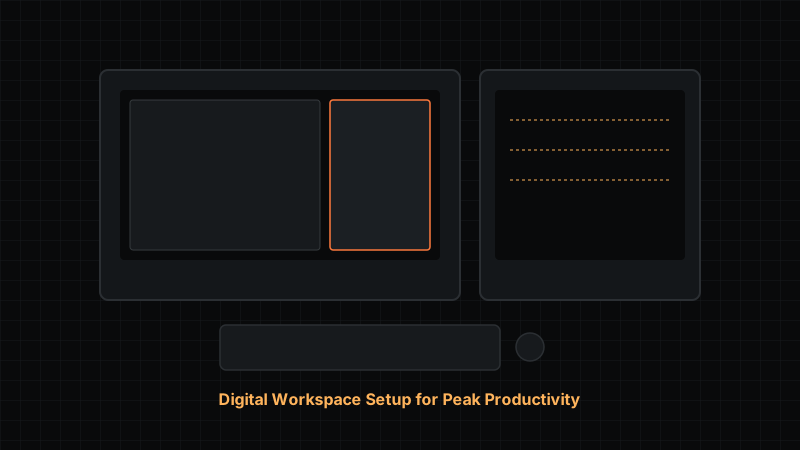
+-----------------------------------------------------------------------+
|                     THE PRODUCTIVE DIGITAL DESK                       |
|                                                                       |
|   [ Primary Focus Window (65%) ]   |   [ Auxiliary Scratchpad (35%) ] |
|   - Active IDE / Word Processor    |   - Virtual Grid Paper Canvas    |
|   - Design Artboard / Vector CAD   |   - Reference Specs & Outlines   |
|   - Primary Task Execution         |   - Ephemeral Flowcharts         |
+-----------------------------------------------------------------------+
1. The Psychology of Cognitive Ergonomics
Physical ergonomics aims to reduce bodily strain; cognitive ergonomics aims to reduce mental strain. In computer-based work, cognitive strain comes from three main sources:
- Visual noise: Cluttered desktop icons, unread notification badges, and overlapping windows competing for your gaze.
- Context switching: Jumping back and forth between full-screen applications to retrieve single lines of data or reference notes.
- Input friction: Sluggish mouse movement, missed key actuations, or non-intuitive shortcut mappings that interrupt muscle memory.
When your digital environment is clean and predictable, your brain devotes fewer executive resources to navigating the interface and more resources to solving complex problems.
2. Screen Real Estate Architecture: The 2/3 Focus Rule
Having a large monitor does not automatically make you more productive. Without deliberate window management, an ultra-wide display often ends up as a disorganized mosaic of open windows.
To establish order, divide your screen space into two distinct zones: Primary Execution and Auxiliary Scratchpad.
| Layout Strategy | Screen Allocation | Ideal Applications | Best For |
|---|---|---|---|
| The 2/3 Focus Split | 65% Primary, 35% Auxiliary | Primary tool on left; notes/grid canvas on right | Writing, software development, CAD drafting |
| The Balanced Split | 50% Left, 50% Right | Document reader on left; editor on right | Deep research, data entry, peer review |
| The Command Center | Fullscreen + Virtual Desktops | 1 active tool per virtual space | Deep single-task focus, creative illustration |
Implementing the 2/3 Focus Split
Devote approximately two-thirds of your primary screen width to your active production tool—whether that is a code editor, a video timeline, a 3D modeling viewport, or a long-form writing application.
Use the remaining one-third column for your reference materials, communication channels, or thinking canvas. This layout mirrors how an architect works at a drafting table: the central blueprint sits directly in front of you, while scale rulers, notes, and calculation scratchpads remain within easy peripheral reach.
Use window tiling managers (such as FancyZones on Windows or Rectangle on macOS) to lock these proportions into keyboard shortcuts so you can restore your workspace with a single keystroke.
3. Frictionless Thinking: Integrating Virtual Grid Paper
Most digital productivity tools force you into rigid, linear structures: nested bullet points, kanban boards, or text documents. But creative problem-solving is rarely linear. When you are mapping out a software architecture, planning a website layout, drafting a mathematical equation, or sketching a room dimension, you need freeform spatial freedom.
This is where a lightweight, non-blocking digital canvas becomes invaluable.
Linear Text Tools (Word / Docs)        Spatial Thinking Canvas (Grid Paper)
- Point A                              +-------+        +-------+
  - Subpoint 1                         | Node  | -----> | Split |
  - Subpoint 2                         +-------+        +---+---+
- Point B (Rigid, top-to-bottom)                            |
                                                            v  (Fluid, visual)
Instead of keeping a bulky desktop application running in the background, open an interactive virtual grid paper workspace in your auxiliary screen zone. A browser-based grid canvas gives you instant visual structure without requiring software installation or account sign-ups:
- Rapid Wireframing: Use the grid lines to maintain consistent spacing and alignment when sketching user interface prototypes.
- System Logic Diagrams: Draw decision trees, data flows, and flowcharts directly alongside your project code.
- Calculation Scratchpad: Work through unit conversions, mechanical tolerances, or budget estimates using the grid as a guide.
- Hybrid Workflows: When you need a tactile, paper-based brainstorming session away from screens, you can quickly generate printable graph paper templates to take handwritten notes before transferring your finalized ideas back to your computer.
By keeping an infinite visual canvas one click away, you eliminate the temptation to open unrelated browser tabs whenever you need to brainstorm.
4. Input Hardware: Keyboards, Pointing Devices, and Keystroke Fidelity
Your keyboard and mouse represent the physical bridge between your thoughts and your computer. Even minor hardware deficiencies can degrade your daily workflow over time.
Keyboard Ergonomics and Layout
For high-volume typing and technical navigation, standard laptop membrane keyboards often force wrists into an unnatural pronation angle. Upgrading to an external mechanical keyboard with tactile switches provides defined physical actuation feedback, reducing finger fatigue.
Consider compact form factors like tenkeyless (TKL) or 75% layouts. By removing the separate numeric keypad, these layouts bring your mouse closer to your body’s centerline, reducing shoulder strain.
Verifying Input Fidelity
High-speed typing and complex shortcut execution demand absolute reliability from every key switch. A switch that occasionally drops a keystroke, chatters (registers a single press twice), or fails to register modifier combinations (Ctrl, Alt, Shift) will break your concentration.
Modifier Key Fails -> Shortcut Breaks -> Flow State Interrupted
[ Ctrl ] + [ Z ] registered as [ Z ]  -> Accidental character insertion
If you are setting up a new workstation or diagnosing intermittent typing lag, it pays to test whether your keyboard is working using a browser-based diagnostic test. Checking your switches for ghosting and actuation consistency takes less than thirty seconds and ensures that every shortcut combo registers cleanly during critical work sprints.
Pointing Devices: Precision vs. Strain
Standard flat mice can encourage repetitive wrist-pivot motions that cause median nerve irritation. Ergonomic vertical mice or stationary thumb/finger trackballs rotate your forearm into a neutral “handshake” posture, shifting movement demands from the delicate wrist tendons to the larger muscle groups of your forearm and shoulder.
5. Taming the Browser and File System
A pristine physical desk is useless if your digital desktop is covered in random screenshots, outdated .zip archives, and fifty-two browser tabs.
Digital Workspace Tidy-Up Checklist:
[ ] Set default browser download folder to /Downloads (not /Desktop)
[ ] Group browser tabs by project using native tab groups
[ ] Archive working project files into yearly/client directories
[ ] Clear temporary scratchpad files at the end of every work session
The “One-Touch” Desktop Rule
Your operating system desktop should not serve as long-term storage. Treat your desktop like an active workbench: only items actively being worked on today belong there. At the close of each day, move completed deliverables to dedicated project folders, file necessary reference assets, and send ephemeral drafts to the trash.
Tab Management Strategies
Browser tab hoarding is usually a symptom of deferred decision-making. Keep your active browser tabs under eight by using browser group folders or reading lists. If a page contains reference material you will need tomorrow, bookmark it in a dedicated project folder or capture the relevant diagram onto your grid canvas instead of leaving the tab open indefinitely.
6. Lighting, Audio, and Environmental Anchors
A digital workspace does not exist in a vacuum; your surrounding environment directly impacts how your eyes and brain interpret digital screens.
- Contrast Balance: Position your monitor perpendicular to windows to avoid direct glare. Use an overhead screenbar monitor light to illuminate your desk surface evenly without casting reflections onto the display panel.
- Audio Boundaries: In open offices or noisy home environments, sound leakage breaks focus. Use closed-back headphones paired with non-vocal ambient soundscapes (such as binaural beats, brown noise, or classical compositions) to establish a cognitive boundary around your workspace.
- Daily Reset Routine: Spend the last five minutes of your workday closing unnecessary applications, clearing your scratchpad, and wiping down your peripherals. When you sit down the next morning, you will be greeted by a pristine, welcoming canvas ready for action.
Related Guides
- Student study setup at home
- Check your computer setup before a new project
- Digital vs. physical drawing grids
Frequently Asked Questions
What is the most effective screen layout for a single monitor?
For monitors 27 inches or larger, a 2/3 focus split is ideal. Place your primary work application on the left side (approximately 65% width) and your reference document or digital grid scratchpad on the right (35% width). This minimizes context-switching while keeping your primary focus centered.
How does using a digital grid paper canvas improve productivity?
Unlike rigid text editors, a digital grid paper canvas provides freeform spatial freedom. It allows you to sketch wireframes, draw logic flowcharts, map technical diagrams, and write non-linear math formulas quickly without breaking your train of thought.
Why should I test my keyboard switches on a new setup?
Mechanical wear, dust accumulation, or faulty membrane connections can lead to key bounce, missed modifier inputs, or key chattering. Testing your keys ensures that complex multi-key shortcuts and fast touch-typing register accurately without subtle, frustrating errors.